Markdown Guides
July 25, 2026
By Antoine Frankart
Bold, Italic, Strikethrough, and Underline in Markdown
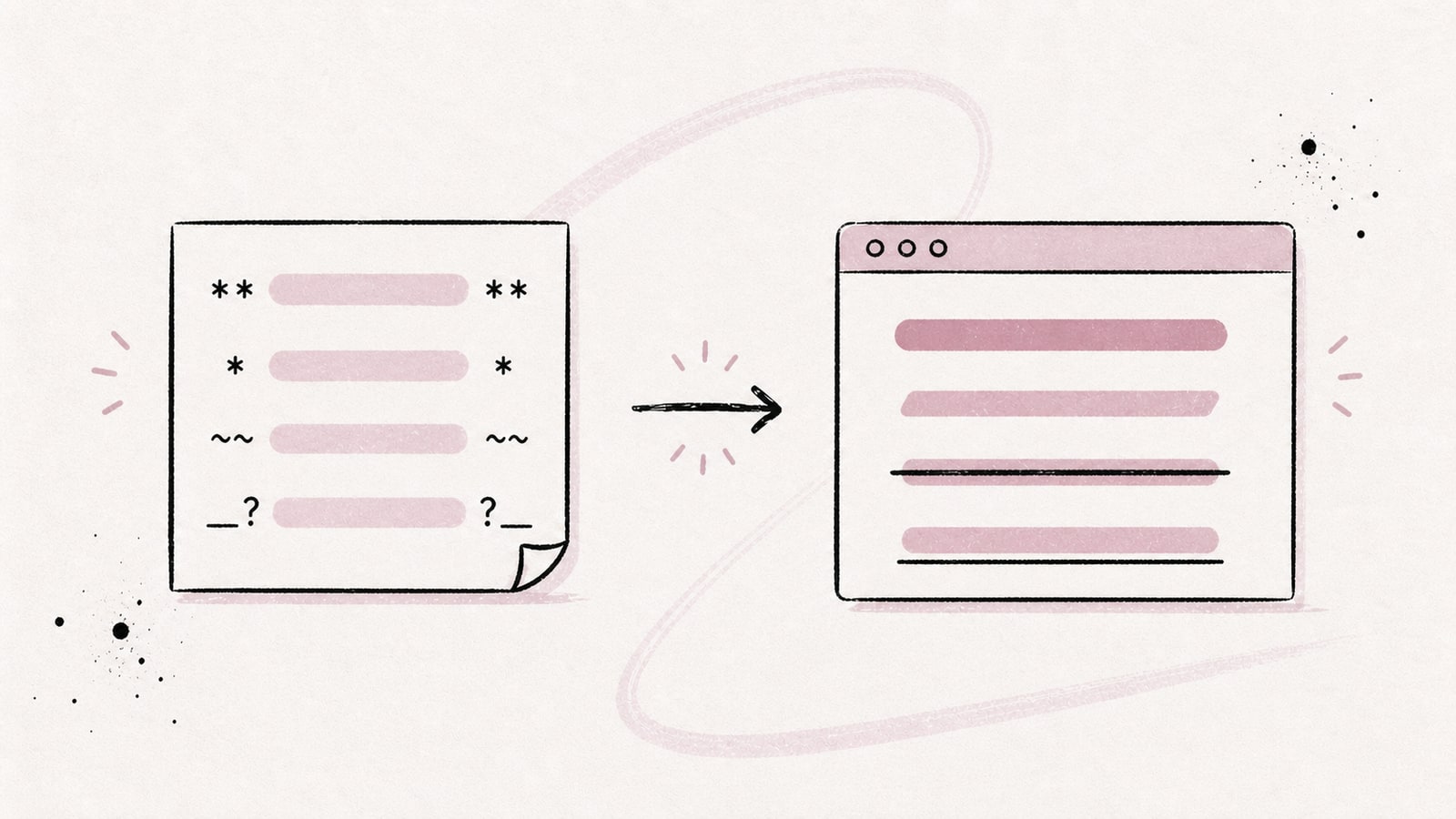
Making a word bold in Markdown takes four asterisks. Italics take two. So far, so good. Then you try to underline a passage with two underscores, get bold text instead, and Markdown's apparent simplicity starts to show a few cracks.
If you are still getting familiar with the format itself, start with the guide to Markdown files (.md): what they are and how to open them.
I will begin with the most useful syntax, then cover its pitfalls, compatibility across GitHub, Obsidian, and Fude, and the most common rendering problems.
1. Choose the right syntax
These are the styles you will use most often:
| Style | Recommended syntax | Alternative syntax | Compatibility |
|---|---|---|---|
| Bold | **text** |
__text__ |
Standard Markdown |
| Italic | *text* |
_text_ |
Standard Markdown |
| Bold and italic | ***text*** |
___text___ |
Standard Markdown |
~~text~~ |
Varies by tool | GFM extension | |
| Underline | None | HTML in some tools | Non-standard |
In practice, I recommend asterisks for bold and italic text:
**bold text**
*italic text*
***bold and italic text***
~~strikethrough text~~
Rendered: bold text · italic text · bold and italic text · strikethrough text
These forms are readable, portable, and avoid confusion with underscores in filenames, identifiers, and code.
2. Make text bold
To make a word or sentence bold, place two asterisks before and after the text:
This decision is **important**.Rendered: This decision is important.
You can format several words:
**Do not delete this file before the migration.**Rendered: Do not delete this file before the migration.
The alternative syntax uses two underscores:
This decision is __important__.The result is identical: This decision is important.
Both forms are valid. They usually produce a <strong> HTML element, which expresses strong importance rather than a purely visual choice.
I still prefer **text**. Asterisks are easier to spot in the source, especially in a paragraph that contains names such as user_profile or release_notes.
Do not leave spaces inside the markers
The markers must touch the text:
**bold text**    ← correct
** bold text **  ← incorrect
Depending on the renderer, the second line may remain visible exactly as written. You can include spaces and punctuation inside the passage, but not immediately after the opening asterisks or before the closing asterisks.
**Warning: this action is permanent.**Rendered: Warning: this action is permanent.
3. Make text italic
To write italic text, use one asterisk on each side:
This setting is *optional*.Rendered: This setting is optional.
You can also use an underscore:
This setting is _optional_.The result is identical: This setting is optional.
Both forms usually produce an <em> HTML element. Italics can indicate emphasis, a term introduced for the first time, the title of a work, or a subtle change in tone.
Again, I generally choose asterisks. Underscores follow a special rule inside words. The restriction prevents identifiers such as my_final_file from becoming partly italic, but it can also create surprising differences between renderers.
Compare these two lines:
extra*ordinary*ly
extra_ordinary_ly
In Fude, only “ordinary” becomes italic: extraordinaryly. The second form remains unchanged: extra_ordinary_ly.
Asterisks can therefore mark part of a word. In Fude and most modern renderers, underscores inside an identifier remain ordinary characters. For portable documentation, format a complete word or phrase instead.
Do not confuse italics with underscores
A single underscore does not create an underline:
_italic_Rendered: italic. The text is not underlined.
The confusion makes sense: in a word processor, the “U” button usually means underline. In Markdown, an underscore is only an alternative to an asterisk for emphasis.
4. Combine bold and italic text
To apply both styles to an entire passage, use three asterisks:
***This information is extremely important.***Rendered: This information is extremely important.
The renderer nests bold and italic formatting. You will usually get a <strong> element containing an <em> element, or the other way around.
You can also make only part of a bold passage italic:
**This step is _especially_ important.**Rendered: This step is especially important.
Or add bold text inside an italic sentence:
*This option is still **experimental**.*Rendered: This option is still experimental.
Modern renderers support these forms, but nested markers quickly become difficult to read in the source. If you need to count the asterisks several times to understand the sentence, the formatting is probably too complex.
My rule is to use three asterisks for a short expression and explicit nesting when only part of the text needs a different level of emphasis.
5. Add strikethrough in Markdown
To strike out a passage, surround it with two tildes:
Version ~~2.3~~ 2.4 fixes this problem.Rendered: Version 2.3 2.4 fixes this problem.
The old value remains readable, but the line through it shows that it is no longer valid.
Strikethrough is useful when you want to:
- show a correction without deleting the previous information;
- mark an abandoned option;
- preserve a lightweight history of a decision;
- display a cancelled task without removing it.
- ~~Use a remote database~~
- Keep SQLite as the local source of truth
Use a remote database- Keep SQLite as the local source of truth
Unlike bold and italic text, ~~text~~ is not part of core CommonMark. Strikethrough is an extension of GitHub Flavored Markdown, usually shortened to GFM. GFM renderers and many modern editors support it, but a minimal Markdown parser may display the tildes instead of striking out the text.
Some tools accept a single tilde:
~strikethrough text~Fude also renders this form as strikethrough. I still do not recommend it: it is less portable, and the tilde already has other meanings in some systems. Two tildes on each side remain the safest convention.
Strikethrough does not work inside code
Markdown does not interpret formatting inside inline code or code blocks:
`~~oldCommand~~`The reader displays ~~oldCommand~~ literally. This is intentional: code must remain exact, without typographic transformations.
If a command is obsolete, strike out the sentence around it instead of the code itself:
~~Use the following command:~~

`old-command`
Rendered:
Use the following command:
old-command
6. Underline text in Markdown
Standard Markdown has no syntax for underlining text.
Neither of these forms creates an underline:
_text_     ← italic
__text__   ← bold
Rendered: text and text. Neither is underlined.
There is a reason for this choice: on the web, underlined text traditionally looks like a link. Adding a decorative underline in the middle of a document can make readers think that a passage is clickable.
Use HTML when the renderer allows it
When a renderer accepts raw HTML, you may encounter the <ins> element:
This passage is <ins>underlined</ins>.Semantically, <ins> means that the text was inserted into the document. Browsers underline it by default, but it is not a neutral equivalent of “draw a line under this word.”
You may also encounter the <u> element:
This passage is <u>underlined</u>.It often produces a visual underline in renderers that accept raw HTML. In modern HTML, however, <u> represents a non-textual annotation, such as a spelling error marked with a line. Using it only to decorate a word is not always the best semantic choice.
More importantly, neither solution is portable. Some readers allow HTML, others filter it for security reasons, and others preserve the text but remove its underline.
Choose a clearer alternative
Before adding HTML, decide what the underline is meant to communicate:
- important information: use bold;
- light emphasis: use italics;
- information that is no longer true: use
strikethrough; - a link: create a real Markdown link;
- an addition in a revision: use
<ins>only when your platform supports it.
In most Markdown documents, bold is a better replacement for underline. It remains visible, semantic, and portable.
7. Do not confuse underlining with highlighting
Underlining adds a line below the text. Highlighting adds a colored background, like a fluorescent marker.
Some tools use two equals signs for highlighting:
==highlighted text==In a reader that follows GFM without an additional extension, the result remains literal: ==highlighted text==.
This syntax is available in several note-taking apps, but it is not part of CommonMark or GitHub Flavored Markdown.
HTML also provides <mark>:
This passage is <mark>highlighted</mark>.You still face the same portability problem as with <u> and <ins>. If your file needs to move between different tools, do not make important information depend only on underlining or proprietary highlighting.
8. Compare rendering in GitHub, Obsidian, and Fude
All three tools render bold, italic, combined bold and italic, and strikethrough without major differences. The gaps appear mainly with HTML and extensions outside GFM.
On GitHub
GitHub supports these styles in .md files, issues, pull requests, and comments.
The usual shortcuts work in the web editor:
Cmd + Bon Mac orCtrl + Bon Windows and Linux for bold;Cmd + Ion Mac orCtrl + Ion Windows and Linux for italics.
GitHub also accepts <ins>text</ins> to produce underlined text. Remember that this is HTML supported by GitHub, not a new Markdown syntax. The same file may lose the underline elsewhere.
Formatting also works inside table cells. If you work with structured data, the complete guide to Markdown tables covers cell limitations, characters that need escaping, and rendering differences.
In Obsidian
In reading mode, the markers disappear and the text is rendered. In editing mode, their visibility depends on the selected mode and the cursor position.
Obsidian also accepts some raw HTML, so <u> works in many cases. This solution remains tied to Obsidian and other renderers that allow the same element. If you export your notes or open them in a stricter app, the underline may disappear.
For a durable note collection, I keep HTML out of the content whenever possible. Standard Markdown travels better.
In Fude
Fude uses GFM. The common syntax shown above works both in the app and in the free Markdown reader on Fude.md. The renderer produces semantic output for bold, italic, and strikethrough text.
Fude does not render <u> or <ins> as underlined HTML. It preserves the text but filters unsupported HTML elements. This prevents an arbitrary Markdown file from injecting HTML into the reading interface.
I prefer to be explicit about that limitation: if your document depends on HTML underlining, it will not keep that appearance in Fude. Use bold or italics for information that must remain emphasized everywhere.
You can paste the examples from this article into the online reader to compare the source and rendered output immediately, without creating a .md file.
Highlight without changing the file
The desktop app also provides highlighting at the reader level:
- select a passage in a document from your library;
- right-click the selection;
- choose Highlight.
Fude stores the annotation separately from the content. It adds neither ==text== nor a <mark> element to the source, so the .md file on disk remains unchanged.
To remove the annotation, right-click the passage and choose Remove highlight. The same menu can copy the passage with its context for use with an AI.
This feature belongs to Fude. The highlight remains visible in the app, but not in another Markdown reader.
9. Use formatting inside other elements
Inline formatting works in most paragraphs, headings, lists, blockquotes, links, and tables.
Inside a list
- **High priority**: fix the data loss
- *Optional*: review the colors
- ~~Removed~~: add a second button- High priority: fix the data loss
- Optional: review the colors
Removed: add a second button
Inside a link
You can format the visible text of a link:
[Read the **complete guide**](/en/blog/what-is-markdown-file-how-to-open)Rendered: Read the complete guide
The exact result can vary between parsers when markers are nested inside brackets. For maximum compatibility, keep the link text plain and place the emphasis around the sentence:
**Important:** read the [complete guide](/en/blog/what-is-markdown-file-how-to-open).Rendered: Important: read the complete guide.
The guide to Markdown links covers inline links, reference links, anchors, and relative paths.
Inside a table
| Status | Description |
| --- | --- |
| **Active** | Feature available |
| *Experimental* | Behavior may change |
| ~~Abandoned~~ | Option removed || Status | Description |
|---|---|
| Active | Feature available |
| Experimental | Behavior may change |
| Option removed |
Bold, italic, and strikethrough text work well inside GFM tables. Raw HTML and proprietary extensions are less reliable.
Around an image
You cannot make an image “bold” or “italic.” You can, however, make its caption italic:

*The same document displayed in reading mode.*Rendered caption: The same document displayed in reading mode.
For paths, alt text, captions, and sizing, see the guide to images in Markdown.
10. Escape asterisks and underscores
Sometimes you want to display the characters without triggering formatting. Add a backslash before each marker:
\*this text remains surrounded by asterisks\*
\_this text remains surrounded by underscores\_
Rendered:
*this text remains surrounded by asterisks*
_this text remains surrounded by underscores_
Inline code is more readable when you need to display complete syntax inside a sentence:
Use `**text**` to write bold text.Inside backticks, Markdown does not interpret asterisks, underscores, or tildes.
This rule is particularly useful when you write a Markdown guide in Markdown, which is exactly what I am doing in this article.
11. Choose the right style
Syntax is only part of the decision. A page where every sentence is bold no longer has a visual hierarchy.
- Bold: important information, a label, a short warning, or a term that readers should spot while scanning.
- Italic: light emphasis, a newly introduced term, the title of a work, or a nuance.
Strikethrough: information that was removed, corrected, or made obsolete but is intentionally preserved.- Underline: an exceptional case with a clear purpose and a known renderer.
I generally reserve bold for information that should survive a quick scan. Italics should remain subtle. Strikethrough tells the story of a change; if it adds no context, deleting the text is often cleaner.
Underline is the least portable and most ambiguous style. On the web, it looks like a link. In a Markdown file, it often requires HTML. That is a lot of compromise for a line below a word.
12. Troubleshoot common problems
“The asterisks are still visible”
Make sure you are looking at the rendered document rather than its source. A text editor naturally displays **bold**. A Markdown reader displays the word in bold.
If you are already looking at a preview, check the spaces:
**correct**
** incorrect **
Rendered: correct, while ** incorrect ** keeps its asterisks.
“Two underscores do not underline the text”
That is the expected behavior:
__text__Rendered: text. This syntax produces bold text; Markdown has no standard marker for underline.
“Strikethrough does not work”
Your renderer may support only basic Markdown without GFM extensions. Try the file in GitHub, Obsidian, or Fude. If the tildes remain visible, your tool probably does not support strikethrough.
Always use two tildes:
~~strikethrough text~~Rendered: strikethrough text
“Formatting stops in the middle of the sentence”
Make sure the opening and closing markers match:
**bold*       ← incorrect
**bold**      ← correct
Avoid mixing asterisks and underscores without a reason. Nesting such as **bold and _italic_** is valid; an improvised sequence quickly becomes difficult to debug.
“Underlined HTML disappears”
The reader is probably filtering raw HTML. This behavior is common in apps that render untrusted documents.
If the underline carries important information, replace it with bold. If it is purely decorative, accept that the document may appear without it.
“Bold does not work inside code”
This is intentional:
`**not bold here**`Rendered: **not bold here**. Inline code and code blocks display their content literally. Move the text outside the backticks if you want to make it bold.
13. Copy this cheat sheet
# Bold
**bold text**
__bold text__

# Italic
*italic text*
_italic text_

# Bold and italic
***bold and italic text***
**bold text with _an italic section_**

# Strikethrough — GFM extension
~~strikethrough text~~

# Underline — HTML, not portable
<ins>inserted and underlined text</ins>
<u>visually underlined annotation</u>

# Literal characters
\*not italic\*
\*\*not bold\*\*

# Syntax displayed as code
`**text**`
Rendered portable syntax: bold text · italic text · bold and italic text · strikethrough text
Bold and italics are part of Markdown's core syntax. Strikethrough is an extension that has become almost universal. Underline remains the exception: it depends on HTML or app-specific syntax.
The rule I follow is straightforward: ** for bold, * for italics, ~~ for strikethrough, and no underline unless the context truly requires it. This keeps the source readable and the output predictable as the file moves from GitHub to Obsidian and then to Fude.
To continue learning the syntax, read the guides to links, images, tables, and horizontal lines.
To check the result without installing an app, paste your text into the free Markdown reader on Fude.md.